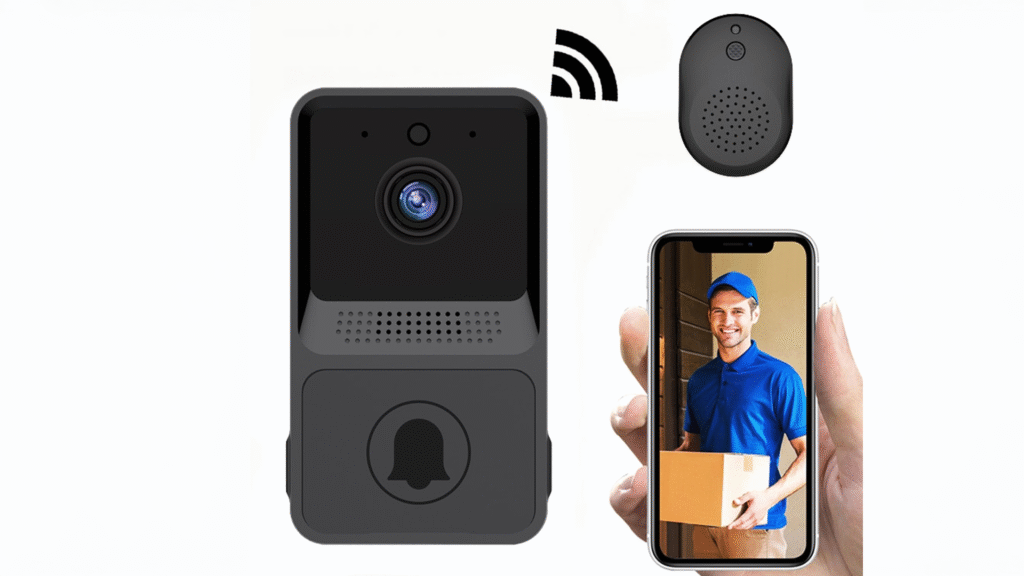
Smart doorbells have transformed home security, but they rely heavily on a stable Wi-Fi connection. Without a strong signal, features like live video, motion detection, and push notifications simply won’t work. If your smart doorbell frequently disconnects, lags, or fails to connect altogether, don’t worry—you’re not alone. In this guide, we’ll walk through the most common Wi-Fi issues in smart doorbells and provide step-by-step solutions to fix them.
1. Recognising Wi-Fi-Related Symptoms
Before diving into fixes, it’s important to confirm the problem is Wi-Fi related. Typical signs include:
- Video feed lagging, freezing, or failing to load.
- Doorbell app showing “offline” or “device not connected.”
- Notifications delayed or not appearing at all.
- Difficulty completing the initial setup connection.
If you’re seeing these issues, it’s likely a Wi-Fi signal or configuration problem.
2. Check Your Wi-Fi Signal Strength
Smart doorbells often sit outside the home, far from your router. Weak signals are a top culprit. Here’s how to fix it:
- Test Signal Strength → Stand near the doorbell with your phone connected to the same Wi-Fi. If pages load slowly, the doorbell will struggle too.
- Reposition the Router → Place the router closer to the entryway or in a more central location.
- Use a Wi-Fi Extender or Mesh System → These devices strengthen coverage and eliminate dead zones.
💡 Tip: Many smart doorbell apps (Ring, Nest, Eufy) allow you to check Wi-Fi signal quality directly in their settings.
3. Verify Wi-Fi Frequency & Compatibility
Most smart doorbells only connect to 2.4GHz networks, not 5GHz. If your router defaults to 5GHz, the device won’t connect.
- Log into your router settings and ensure 2.4GHz is enabled.
- During setup, manually select the 2.4GHz network.
- If your network has the same name for both bands, consider renaming them (e.g., “HomeWiFi_2.4G” and “HomeWiFi_5G”) to avoid confusion.
4. Restart Devices to Refresh the Connection
Sometimes the simplest fix works best.
- Restart your Wi-Fi router.
- Restart the smart doorbell by holding its reset button (check manufacturer instructions).
- Reconnect the doorbell in the app.
This often resolves temporary glitches without more advanced fixes.
5. Update Firmware & App Versions
Outdated firmware can cause connectivity issues.
- Open the smart doorbell’s app and check for device updates.
- Ensure your smartphone app is the latest version.
- Reboot both devices after updating.
Manufacturers frequently release updates that improve Wi-Fi stability and fix known bugs.
6. Reduce Wi-Fi Network Congestion
Too many devices connected to your network can overload the router and push your doorbell offline.
- Disconnect unused devices from Wi-Fi.
- Upgrade to a higher-capacity router if you have 20+ devices.
- Assign the doorbell a static IP address in router settings for more stable communication.
7. Check Power Supply
A weak or unstable power source may mimic Wi-Fi issues. Low voltage can prevent the doorbell from maintaining a consistent signal.
- If it’s a wired unit, check that it meets the recommended transformer voltage (usually 16–24V).
- For battery-powered models, ensure the battery is fully charged.
Stable power = stable connection.
8. Reset and Reconnect as a Last Resort
If nothing works:
- Perform a factory reset on the doorbell (refer to manual).
- Remove the device from your app.
- Reinstall it as if it were brand new.
Though time-consuming, this clears any software conflicts and gives the device a fresh start.
9. When to Call Professional Help
If your Wi-Fi is stable for other devices but your doorbell still won’t stay connected, it may be a hardware issue. Faulty antennas or internal components may require repair or replacement. At this point, contacting the manufacturer’s support or a professional installer is the best move.
Final Thoughts
Wi-Fi issues in smart doorbells are frustrating, but most are easily fixable with a few adjustments. Start with simple checks like signal strength and frequency, then move into firmware updates and router settings. In most cases, these steps restore a smooth, reliable connection—ensuring you never miss a visitor or delivery.
A smart doorbell is only as “smart” as its Wi-Fi connection. With these troubleshooting steps, yours can run at its full potential.